Writing a novel means constantly switching between two perspectives: that of the author, focused on finding the right words, and that of the reader, discovering the story with fresh eyes.
Yet after spending hours working on a manuscript, stepping back can become difficult. Writing tools can draw your attention away from the page, you might lose the thread of a scene, or stop noticing awkward passages simply because you've read them too many times.
To address these two needs, Plumelisse offers two complementary writing experiences: Focus Mode and Reading Mode.
**One helps you concentrate on writing. The other lets you rediscover your manuscript as if you were reading someone else's book.**
Here's how to use them and, more importantly, when they can be most useful.
Focus Mode: write without distractions
When you're working on an important scene, even a small interruption can break your concentration. Notes, character profiles, and timelines are valuable tools for building a novel, but you don't necessarily need them on screen throughout your writing session.
That's exactly where Plumelisse's Focus Mode comes in.
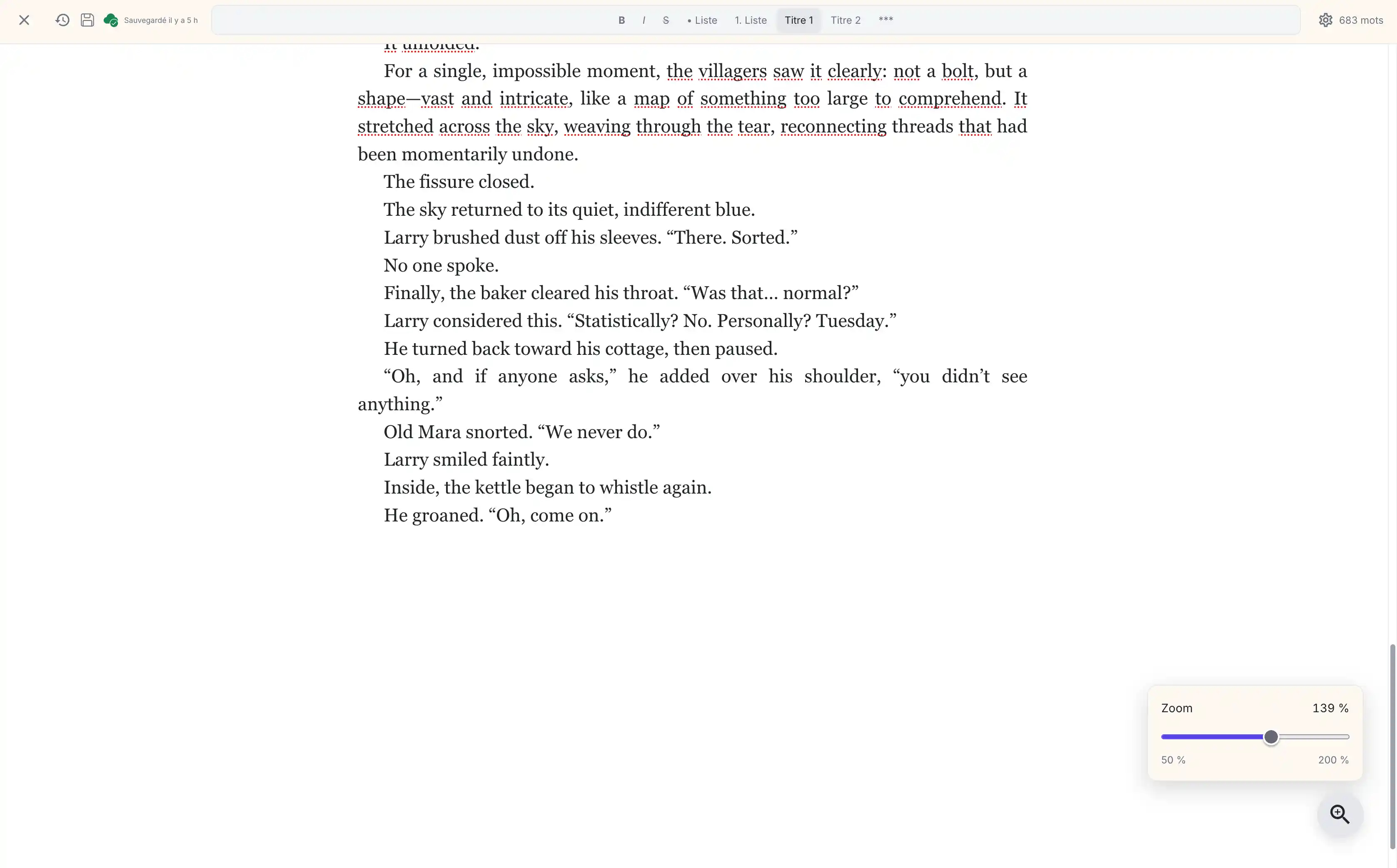
It transforms your editor into a clean, full-screen writing space entirely dedicated to the chapter you're working on. Secondary interface elements disappear, leaving you alone with your words.
How do you activate Focus Mode?
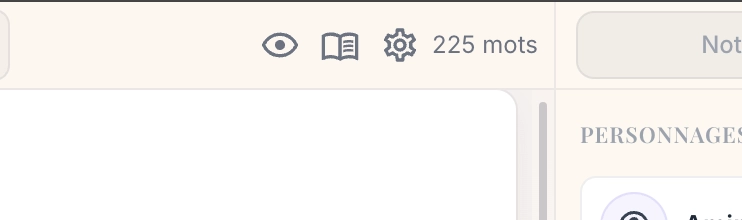
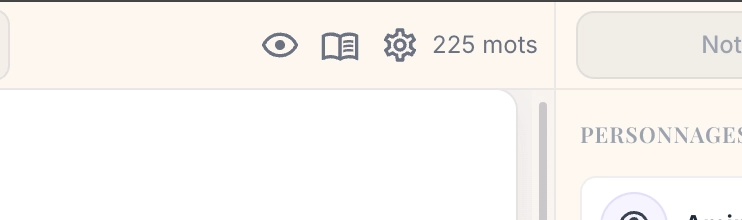
On desktop, simply open a chapter in the Plumelisse editor and click the eye icon in the editor toolbar.
You can also use a keyboard shortcut:
Press Ctrl + Space to open the command palette.
Press O to turn Focus Mode on or off.
To return to the usual workspace, press Escape or use the close button.
Focus Mode automatically adapts to your application's light or dark theme. It's available on desktop, while the mobile interface retains its own dedicated writing experience.
When should you use Focus Mode?
Focus Mode is especially useful whenever you want to make progress without interrupting your train of thought.
For example, you might activate it while drafting a new chapter, writing dialogue, finishing a challenging scene, or dedicating an entire session to your manuscript.
A useful habit is to review your notes and character information before you begin, then switch to Focus Mode once you know what you want to write.
You keep the benefits of an organized writing environment without constantly checking its different tools.
**The goal isn't to take away Plumelisse's features, but to let them fade into the background whenever your creativity needs your full attention.**
Reading Mode: experience your manuscript like a real book
Writing and reading are two very different experiences.
When you're writing, you know the intentions behind every sentence. You understand what your characters feel, why a scene exists, and what you're trying to reveal to your audience.
But your future readers won't have access to all that background information.
That's why reading your manuscript in an environment that resembles a real book can be so valuable. It helps you move away from the author's perspective and experience your story more like a reader.
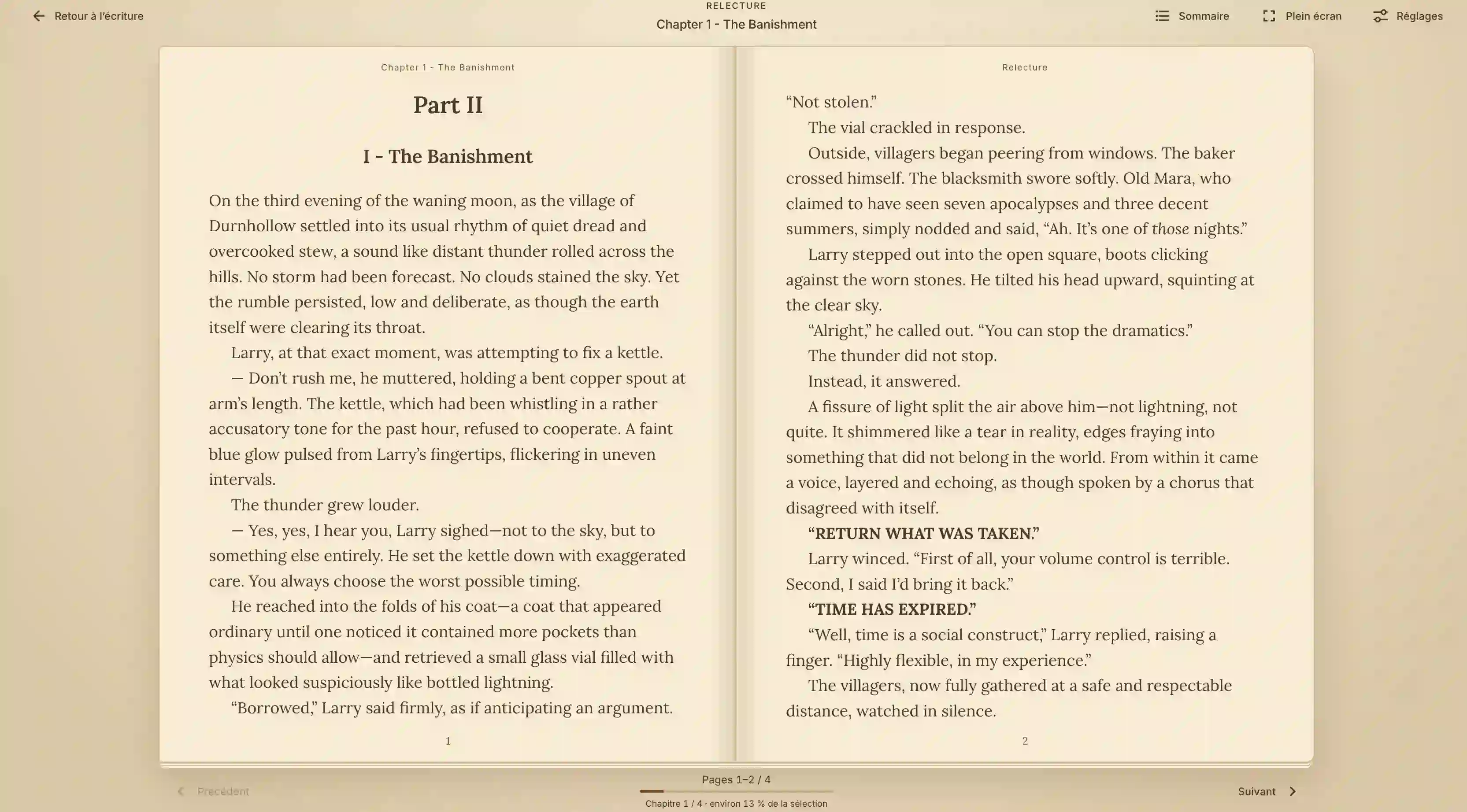
With Reading Mode, Plumelisse turns your manuscript into an immersive reading experience, featuring a carefully designed book layout, chapter navigation, and realistic page-turning animations.
How do you open Reading Mode?
In the editor, select a chapter and click the open-book icon next to Focus Mode.
A selection window then offers several options:
Read the current chapter, ideal for reviewing a specific scene or passage.
Read a folder, allowing you to move through several chapters grouped within a section of your project, including subfolders.
Read the entire project, letting you experience your complete manuscript as one continuous story.
Simply choose an option to start reading. Plumelisse saves your latest text changes before opening the reader.
Unlike Focus Mode, Reading Mode is also available on mobile, so you can comfortably read your writing from your phone.
A reading experience tailored to your preferences
Reading Mode offers two different ways to explore your manuscript.
In paginated mode, your text appears like a traditional book, with one or two pages displayed depending on the available screen space. You can turn pages using the navigation controls, keyboard arrows, or touchscreen swipes.
In continuous scrolling mode, chapters flow vertically, providing an experience closer to reading an article or digital document.
An interactive table of contents also lets you jump directly between chapters without navigating through the entire manuscript.
You can customize several settings to make reading more comfortable:
Adjust the text size.
Choose a light or dark theme independently of the application theme.
Switch between paginated reading and continuous scrolling.
Enable full-screen reading for a more immersive experience.
Premium members unlock additional customization options, including multiple fonts, different line spacing settings, adjustable page widths, and a sepia theme that can be especially pleasant during longer reading sessions.
Their preferences are also saved to their account, making it possible to maintain a consistent reading environment across devices.
With a free account, settings remain available during the current page session but aren't permanently saved.
Review your novel and identify passages that need improvement
Reading Mode's value goes beyond its visual presentation.
By experiencing your story in a different layout from your writing editor, you can focus more easily on what your future readers will actually experience.
Try reading several chapters in a row without stopping to edit every sentence. Pay attention to the rhythm of your story, the transitions between scenes, and how naturally your dialogue fits into the narrative.
You may start noticing issues that weren't obvious before: descriptions that feel too long, repeated information, abrupt transitions, or passages that unnecessarily slow down the story.
How can you edit a passage while reading?
You don't need to manually search for the relevant chapter and paragraph.
On desktop, simply click a word in the passage you want to revise. On mobile, press and hold the word.
Plumelisse then displays the "Edit" action.
Selecting it takes you directly back to the editor, opening the correct chapter and locating the selected word. The relevant text is automatically found and highlighted so you can make your changes.
This lets you move naturally between reading and writing without wasting time searching for passages you've identified for improvement.
Resume reading without losing your place
Reviewing an entire manuscript may naturally take several sessions.
Premium members have access to a resume feature that remembers their last reading position for each project.
The next time you open Reading Mode, simply select "Resume" to return to where you left off, even from another device.
You can also start a new reading session from a chapter, folder, or the entire project.
This is particularly useful when working through a novel containing dozens of chapters.
How can you combine both modes in your writing routine?
Focus Mode and Reading Mode aren't meant to replace your usual workflow. Instead, they help adapt your writing environment to the creative stage you're currently working through.
For example, you could follow a simple routine:
Prepare your session: review the notes, characters, and events connected to the chapter you're about to write.
Switch to Focus Mode: write your scene while concentrating entirely on the text, without unnecessarily checking other tools.
Finish with a reading session: open Reading Mode to review your chapter or the scenes you've just written, then return to the editor whenever you identify something worth changing.
You might also save Reading Mode for major milestones: completing a section, finishing a narrative arc, or reviewing your first complete draft.
Another useful approach is to read your manuscript several times, each time with a specific goal: checking dialogue flow, evaluating narrative pacing, or identifying unnecessary repetition.
Two modes, one goal: better writing
There's no single correct way to write a novel. Some authors prefer keeping their notes visible at all times, while others work best with an almost empty screen. Some review every chapter immediately, while others wait until their first draft is complete.
What matters is having a workspace that adapts to your needs.
With Focus Mode, Plumelisse helps you give writing your full attention. With Reading Mode, you can step back and discover your manuscript from a different perspective.
**Write with focus, then revise with a reader's perspective: two complementary approaches to help your novel move forward.**
Both modes are available for free in Plumelisse. You can try them with your next chapter, then explore the additional customization options available through Premium features.